Best Practices for Optimizing Server Storage Capacity
Exploratory users can publish content such as data, charts, analytics, dashboards, notes, and projects to the server, allowing others to view them through a browser or download them for sharing.
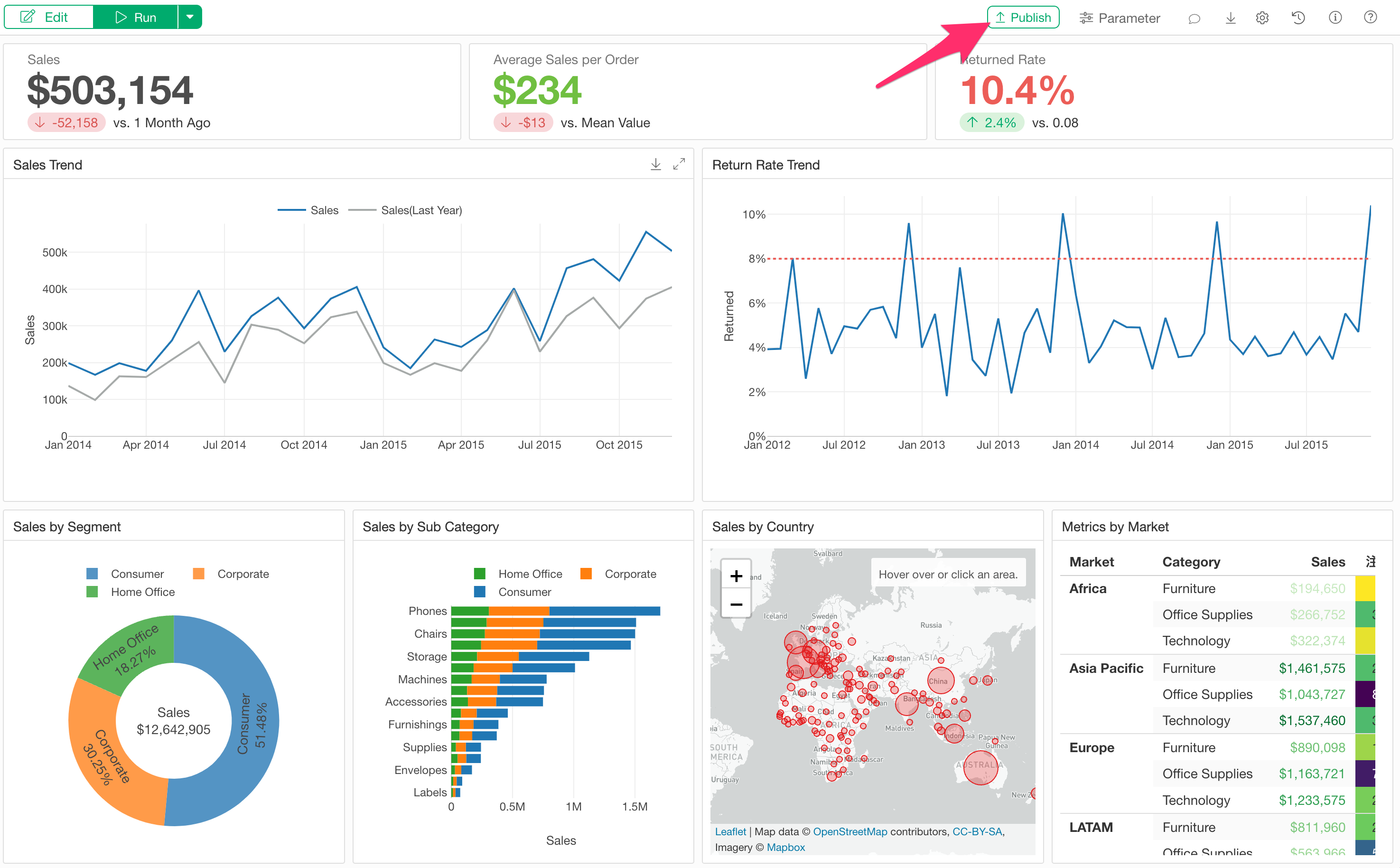
- Reference: How to publish projects, data/steps, charts, analytics, notes, and dashboards to Exploratory Server - Link
When is Storage Consumed?
However, publishing to the server is not limitless. Depending on your subscription plan, there is a fixed storage capacity for content that can be saved on the server.
Below are the scenarios where storage capacity is consumed.
When Publishing
First, storage capacity is consumed when you publish content to the server.
When Executing a Schedule
Content published to the server can be automatically updated by setting a schedule, provided it uses a data source accessible by the Exploratory Server.
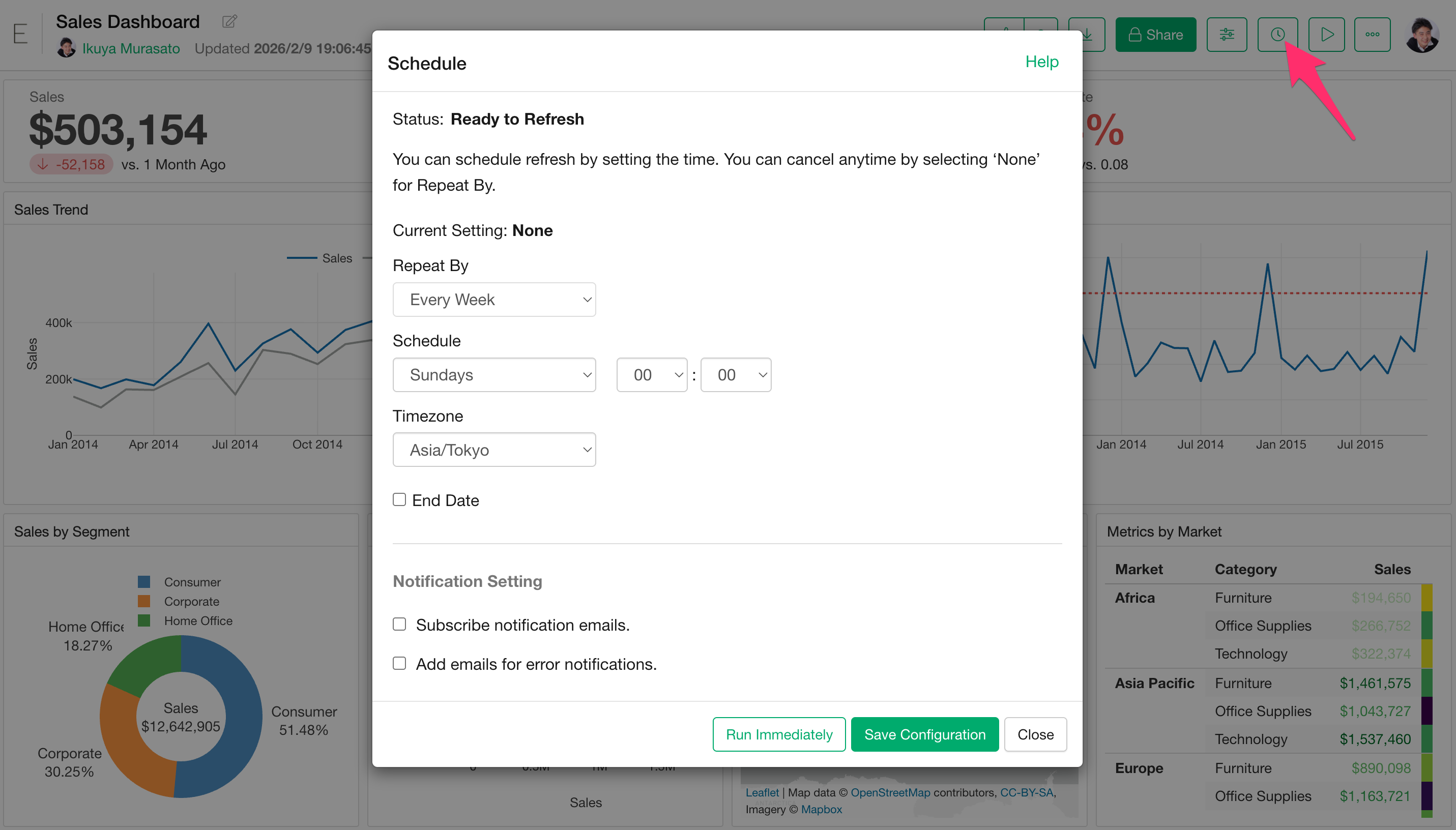
When content is updated via the scheduling feature, the previous content is overwritten with the latest data, which then consumes storage. (Note: This does not mean storage usage continuously adds up; it replaces the existing data.)
When Republishing
When you publish content to the same URL again (republishing), Exploratory does more than just overwrite the content. To allow for restoration to previous versions, it retains information from past versions as data.
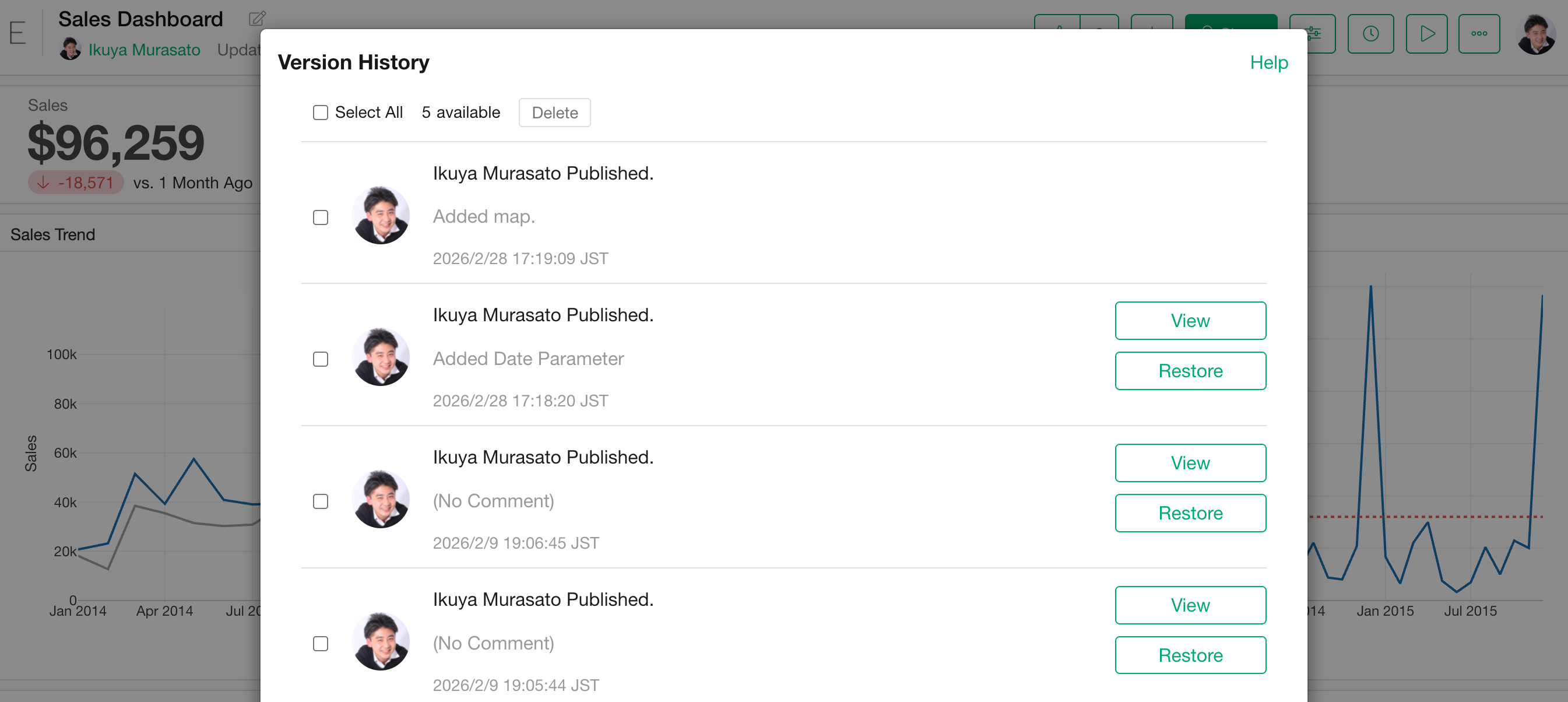
- Version History - Link
Therefore, every time you republish content, even to the same URL, information from past versions accumulates behind the scenes.
When Team Members Publish Content
Exploratory includes a Team feature. This allows multiple Exploratory users to be registered to a team, enabling them to publish content as a collective entity.
- Collaboration with Exploratory - Team & Project Share - Link
For content published as a team, any member belonging to that team can update the content at the same URL.
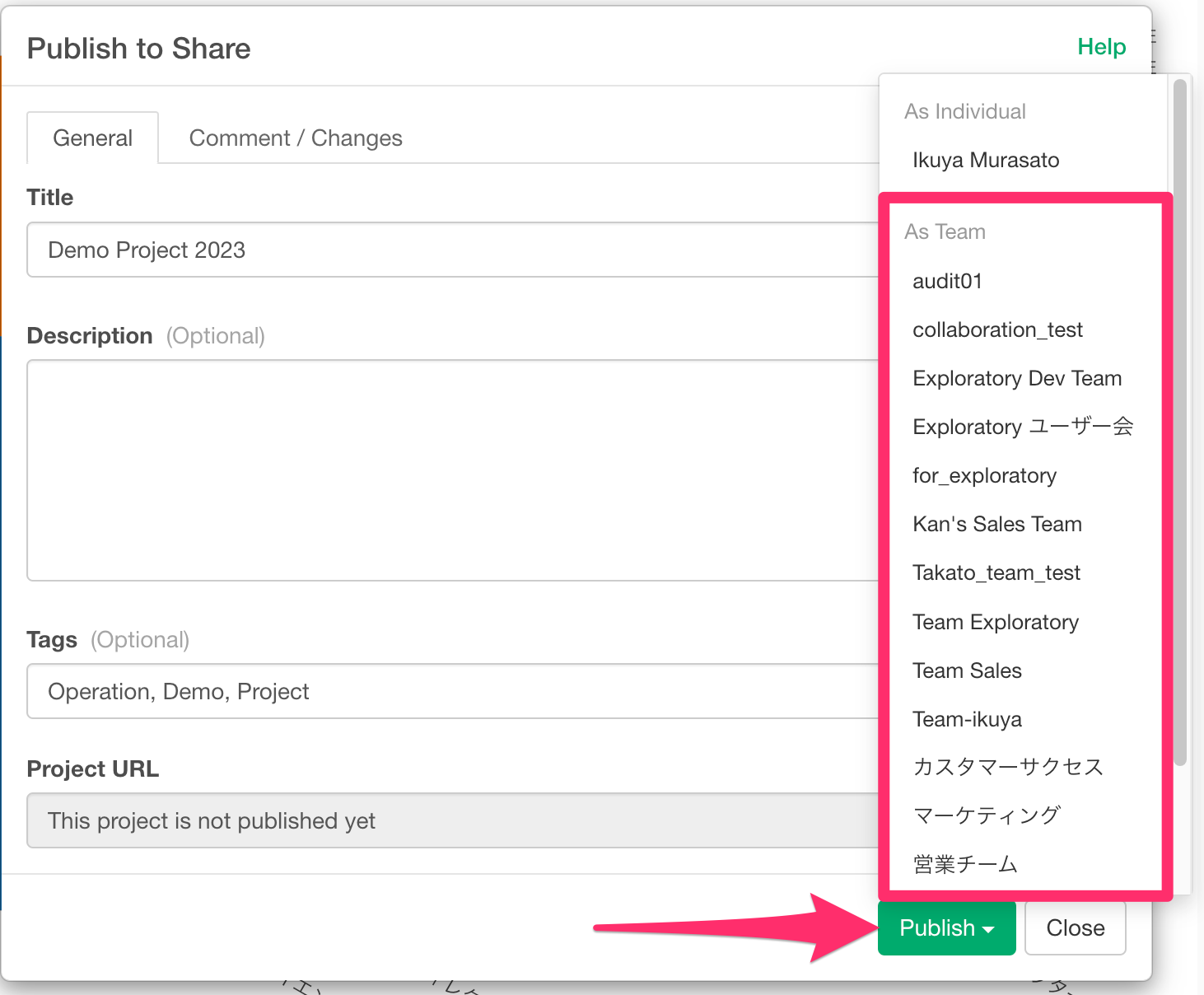
In this case, regardless of which member performs the publication, the storage consumption is charged against the storage capacity of the team creator (administrator).
Optimizing Server Storage Capacity
As the number of published items and the frequency of republishing increase, server storage capacity can become strained.
If you attempt to publish content that exceeds your allocated server capacity, a warning screen stating “Exploratory Server does not have enough data capacity” may appear when you click the publish button in Exploratory Desktop.
While you can manage storage after such a warning appears, this guide introduces methods to optimize server storage capacity both when a warning occurs and proactively to prevent it.
Checking Storage Usage
To see how much storage your published content is consuming, log in to the Exploratory Server and open the account menu.
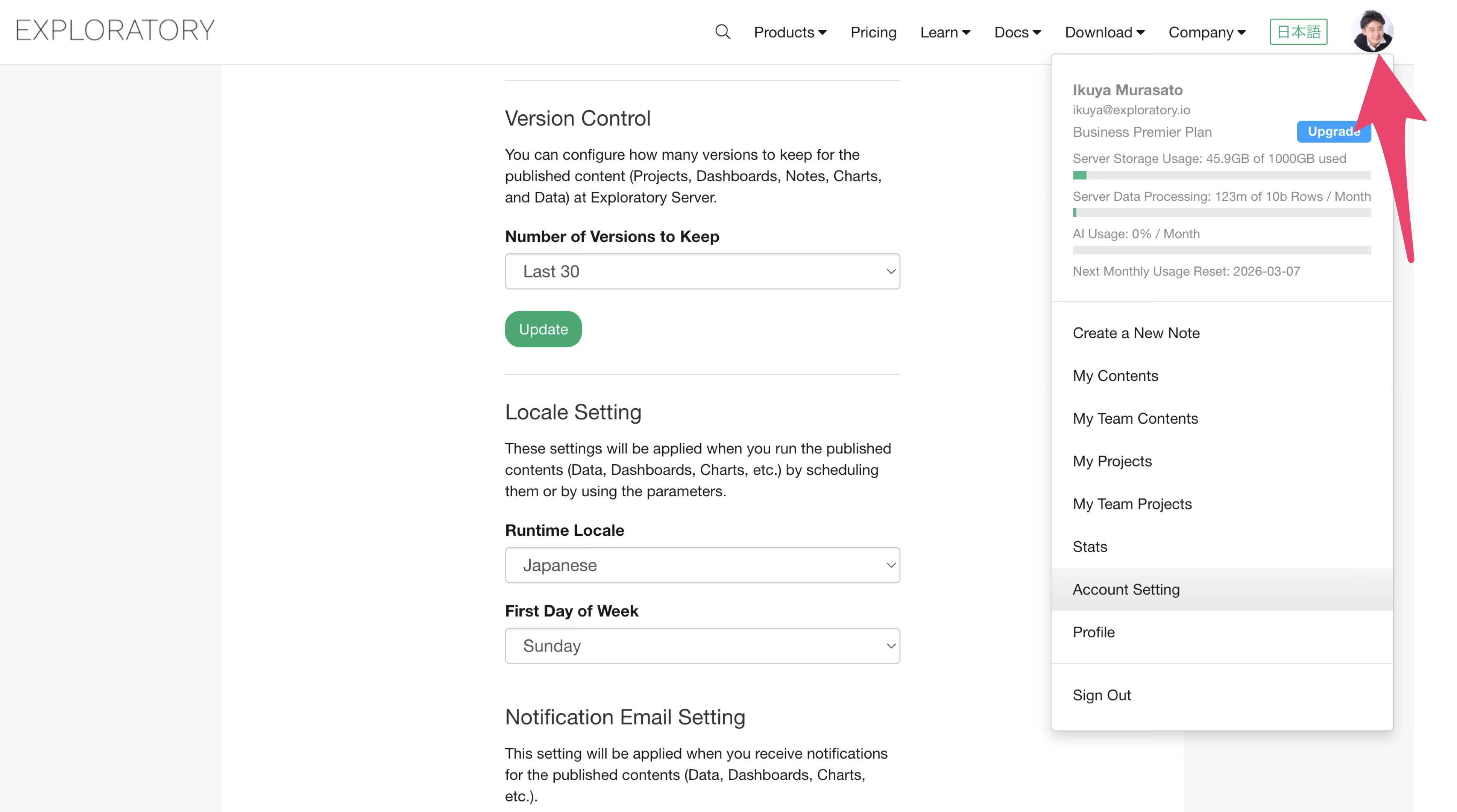
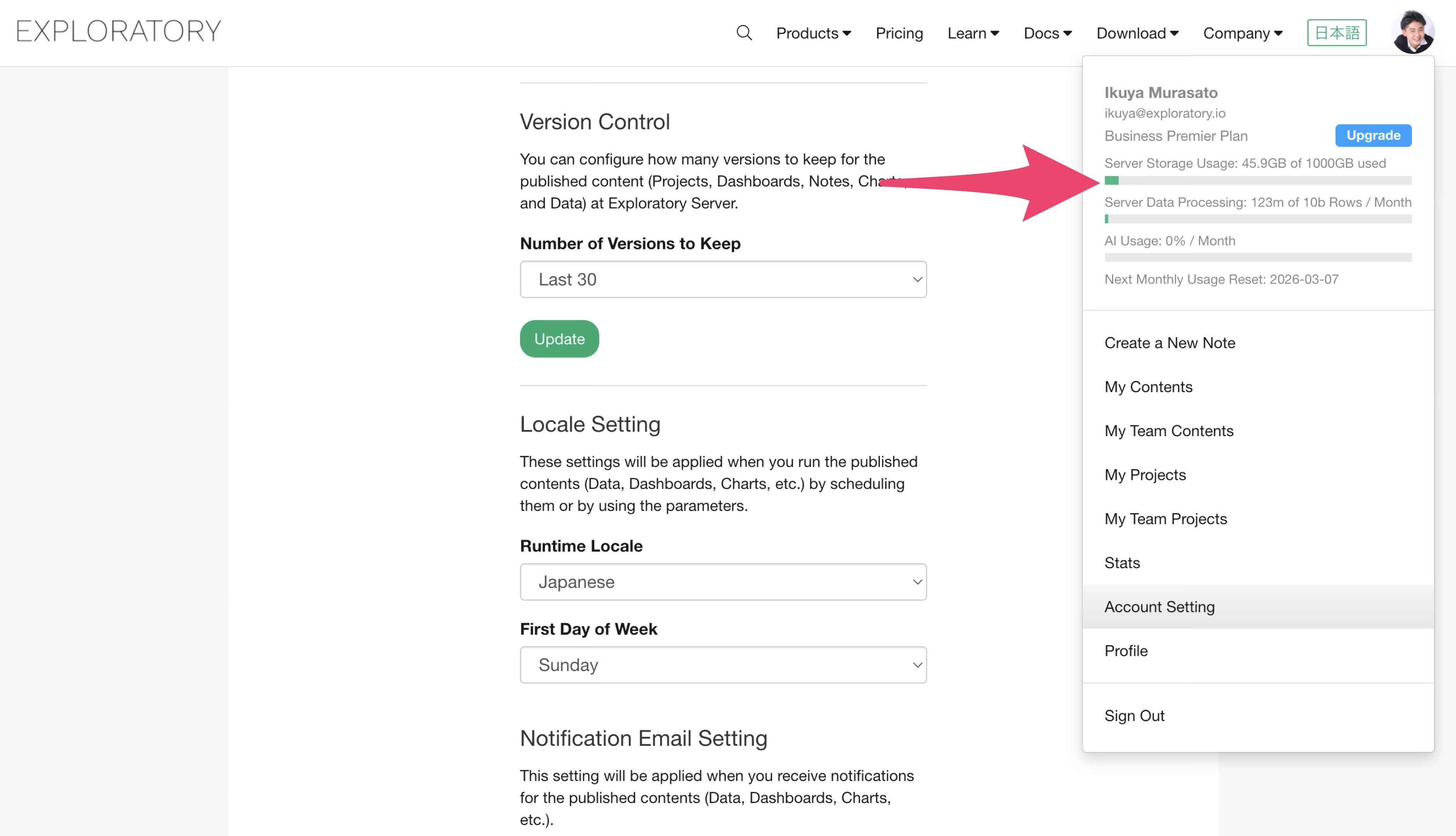
You can check your current storage consumption through numerical values and a visual bar.
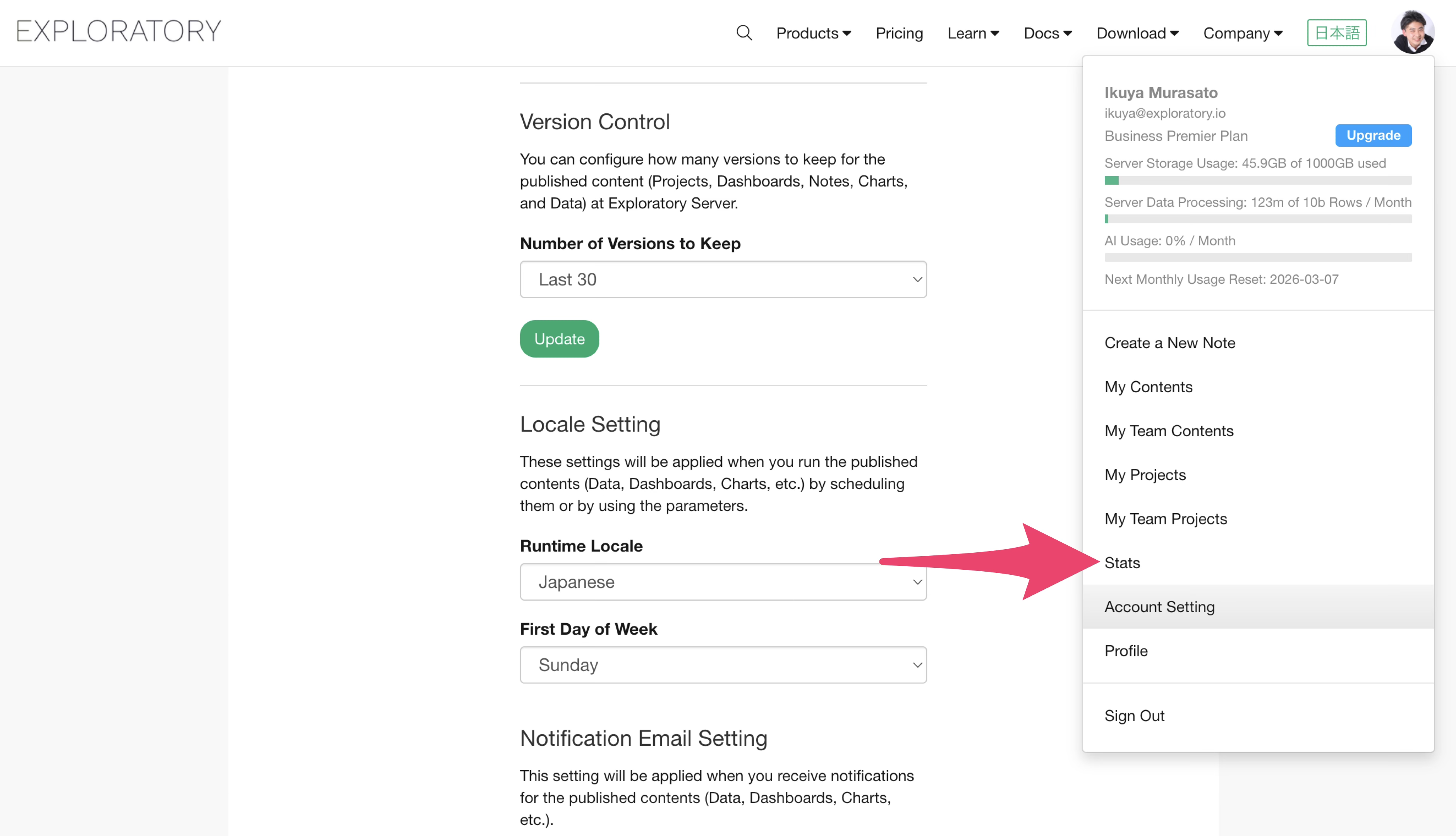
To reduce storage usage, navigate to the Content Usage page from the same account settings menu.
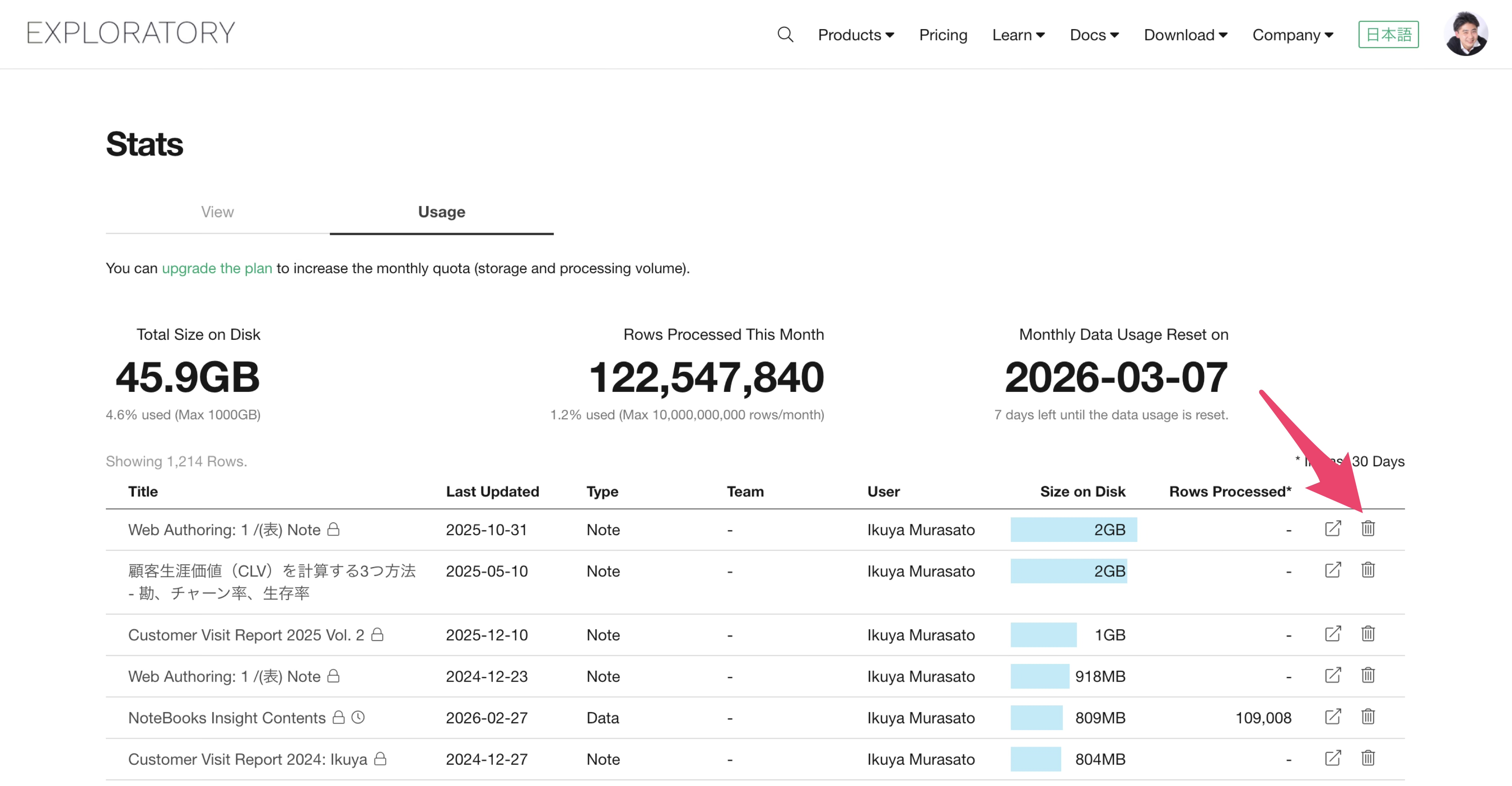
Once on the Content Usage page, switch the tab from “Views” to “Usage” to see information regarding storage capacity.
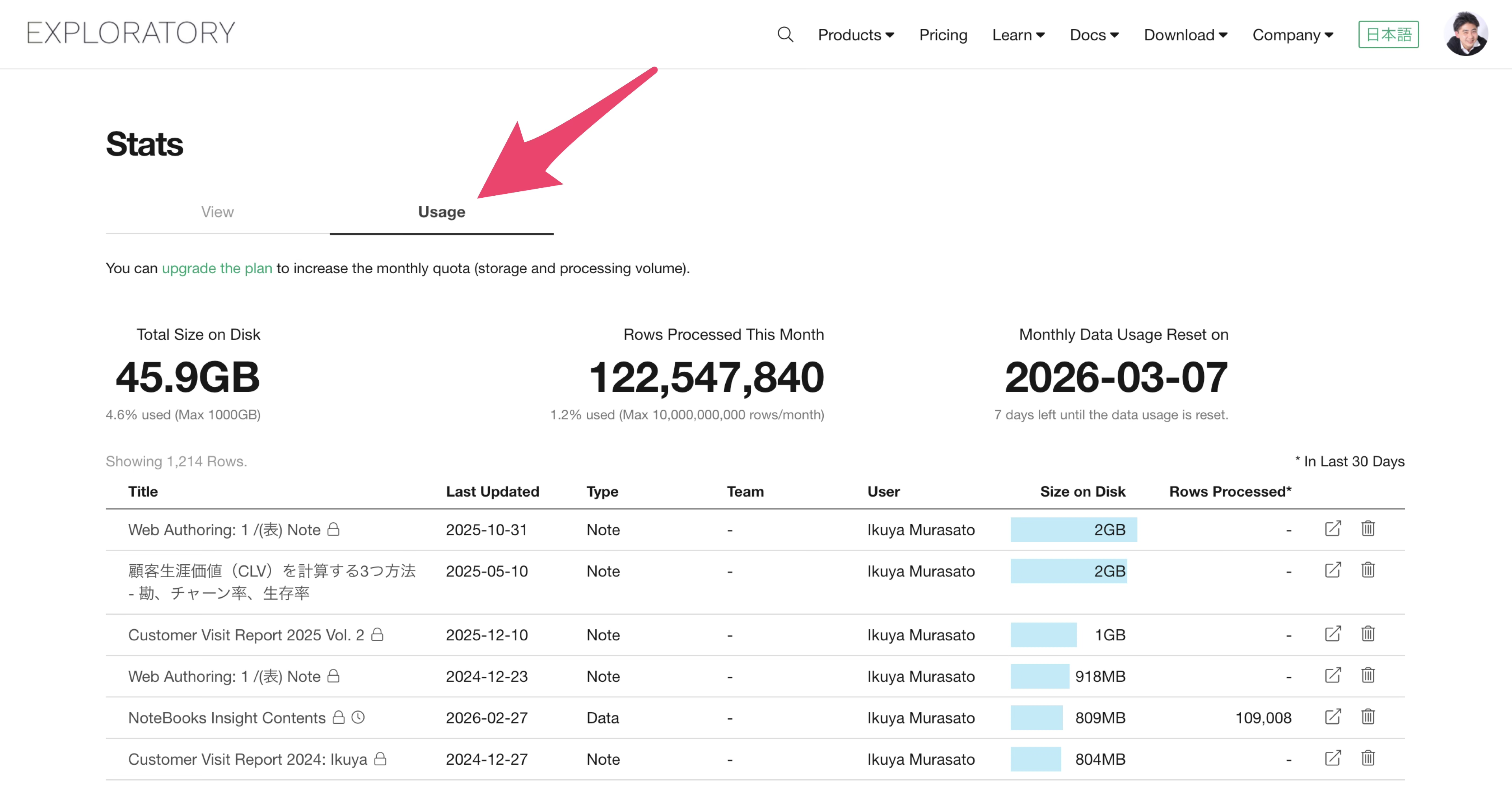
Switching to the Usage tab allows you to see a summary of disk usage, similar to what is shown in the account menu.
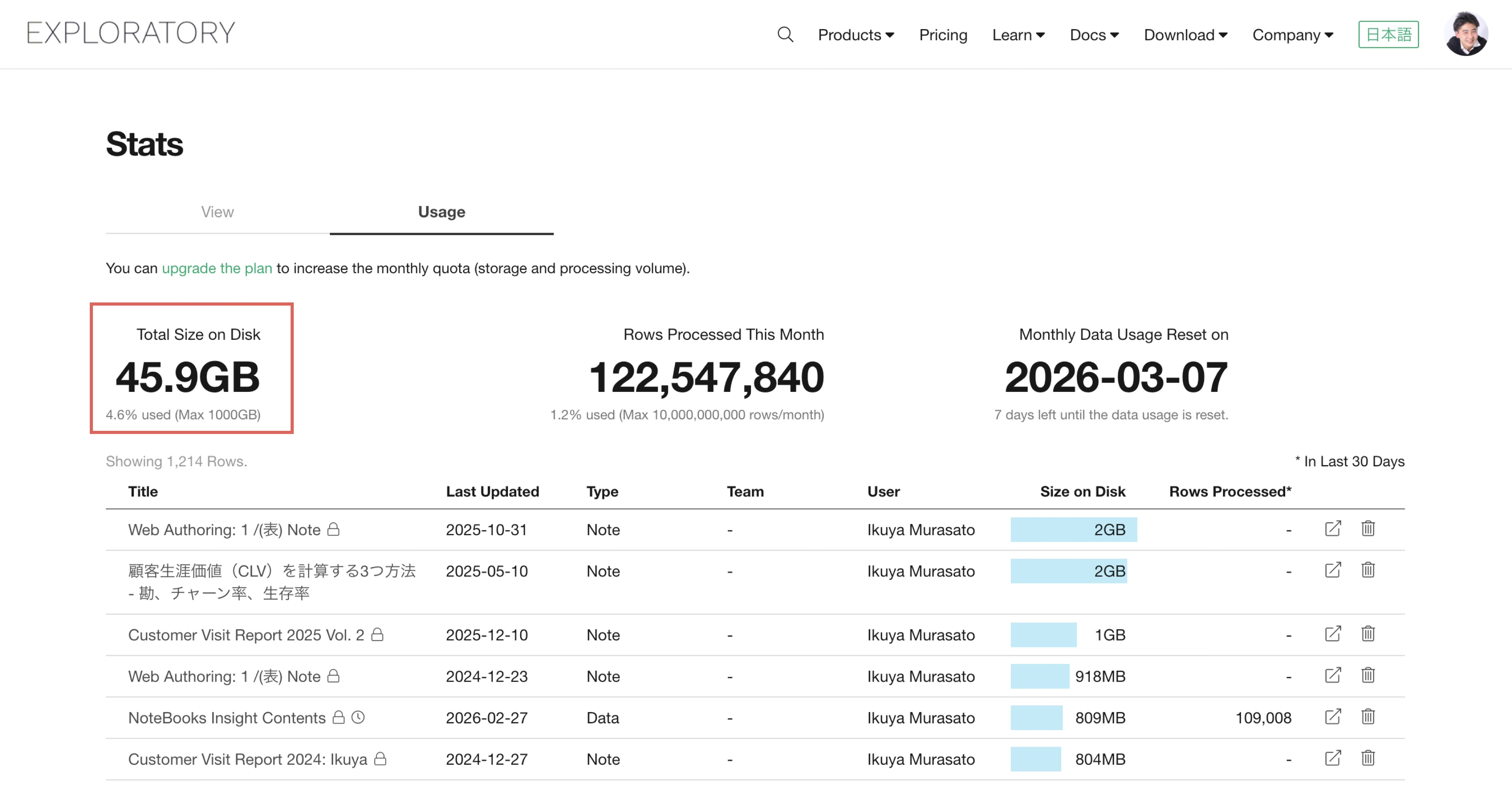
Furthermore, the section below the summary displays all information for content you have published or content published by teams where you are the owner.
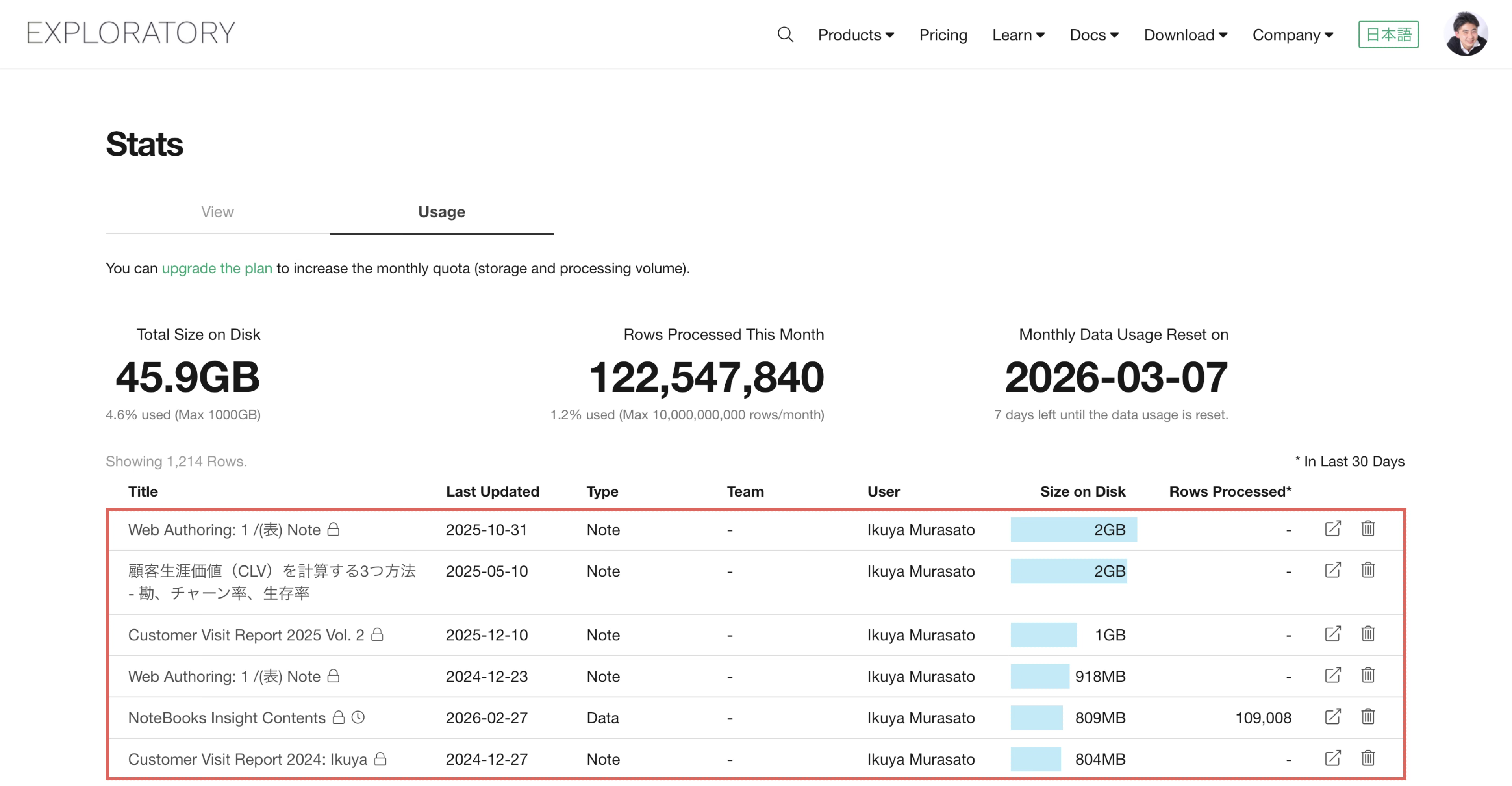
By looking at the “Disk Usage” column, you can see how much storage each piece of content consumes. The content is sorted in descending order of disk usage.
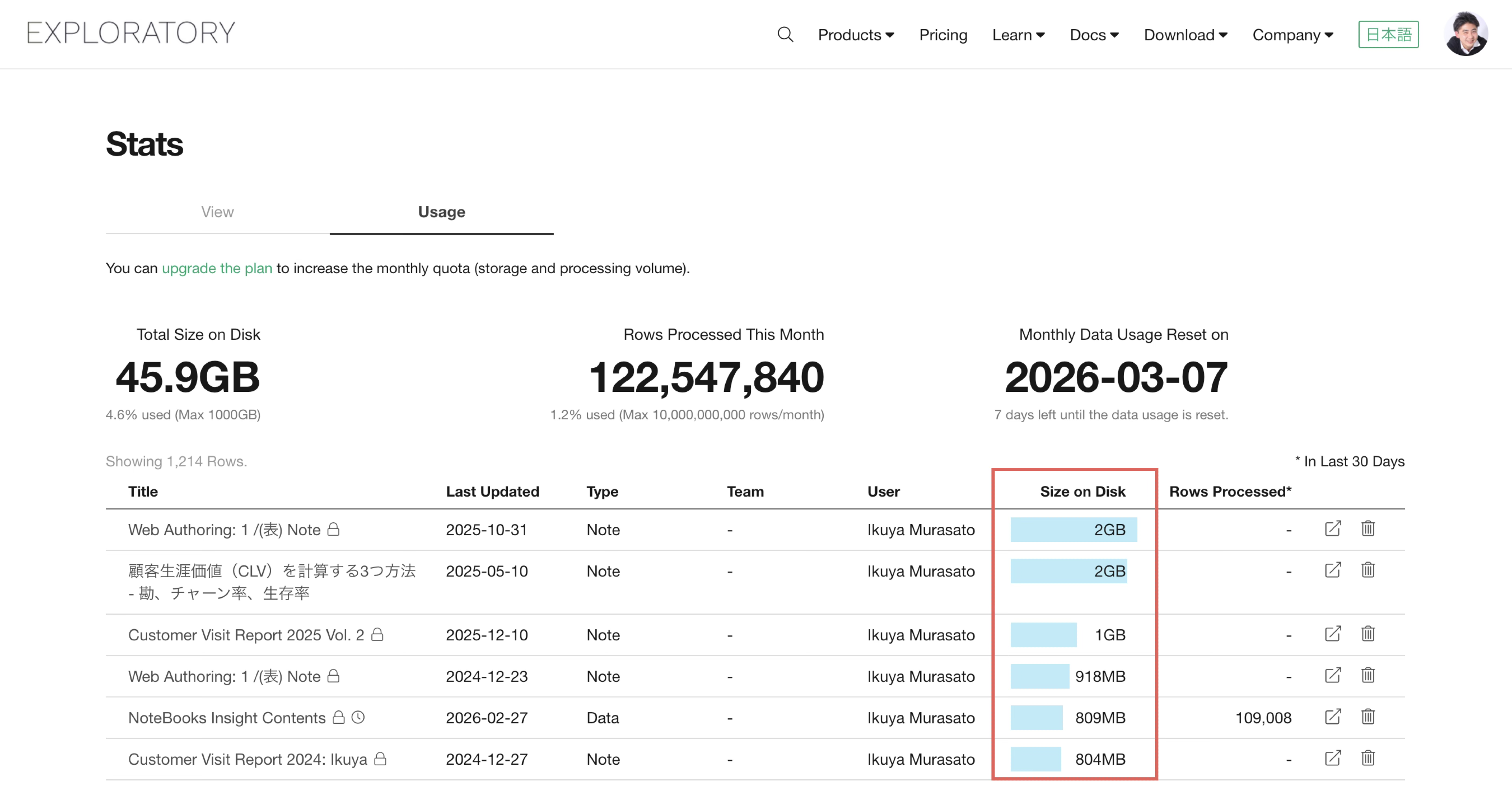
The “Disk Usage” shown here includes the history of past versions mentioned earlier.
Therefore, even if a value like 918MB is displayed, it does not necessarily mean a single piece of content occupies 918MB; it could mean the total volume, including several past versions, equals 918MB.
Freeing Up Storage Capacity
There are two approaches to optimizing disk usage.
Deleting Content
The simplest approach is to delete content. If you want to check the details of a piece of content, click on the title name to view it.
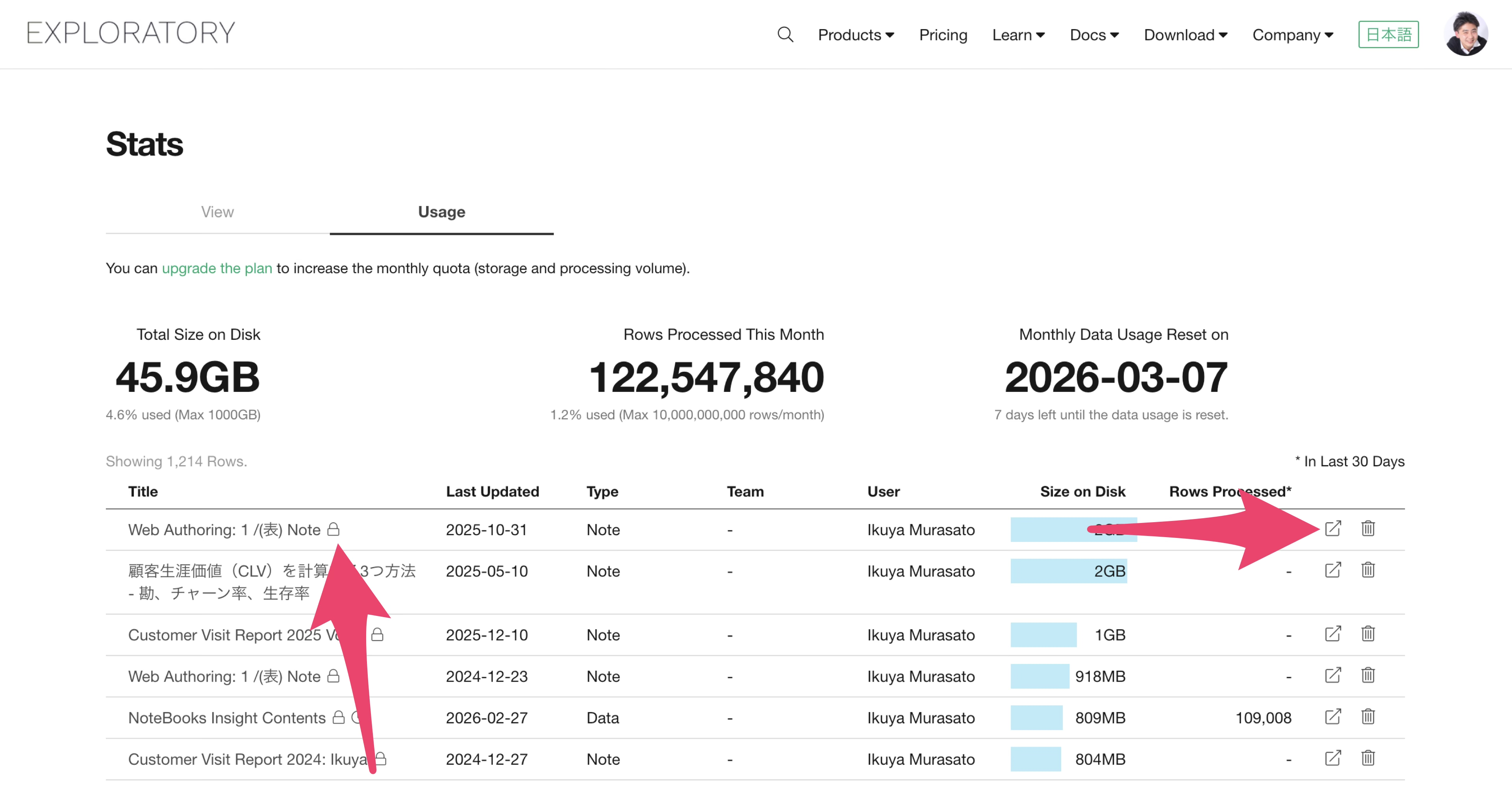
If the content is no longer needed, you can delete it by clicking the trash can icon on the far right of the content table.
Deleting Past Versions
Alternatively, you can keep the content itself but delete past versions to optimize storage. To do this, you must access each piece of content.
You can jump to the specific content page by clicking the title menu or the view content button.
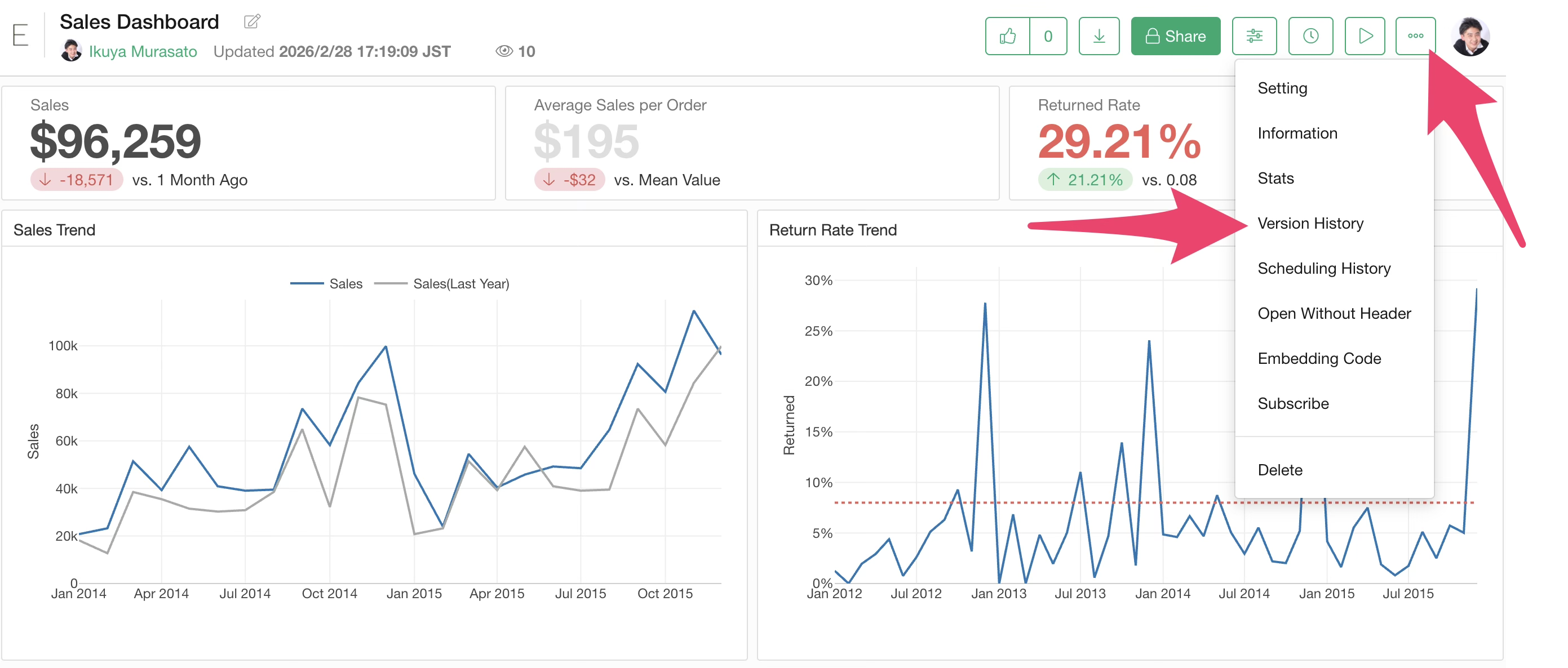
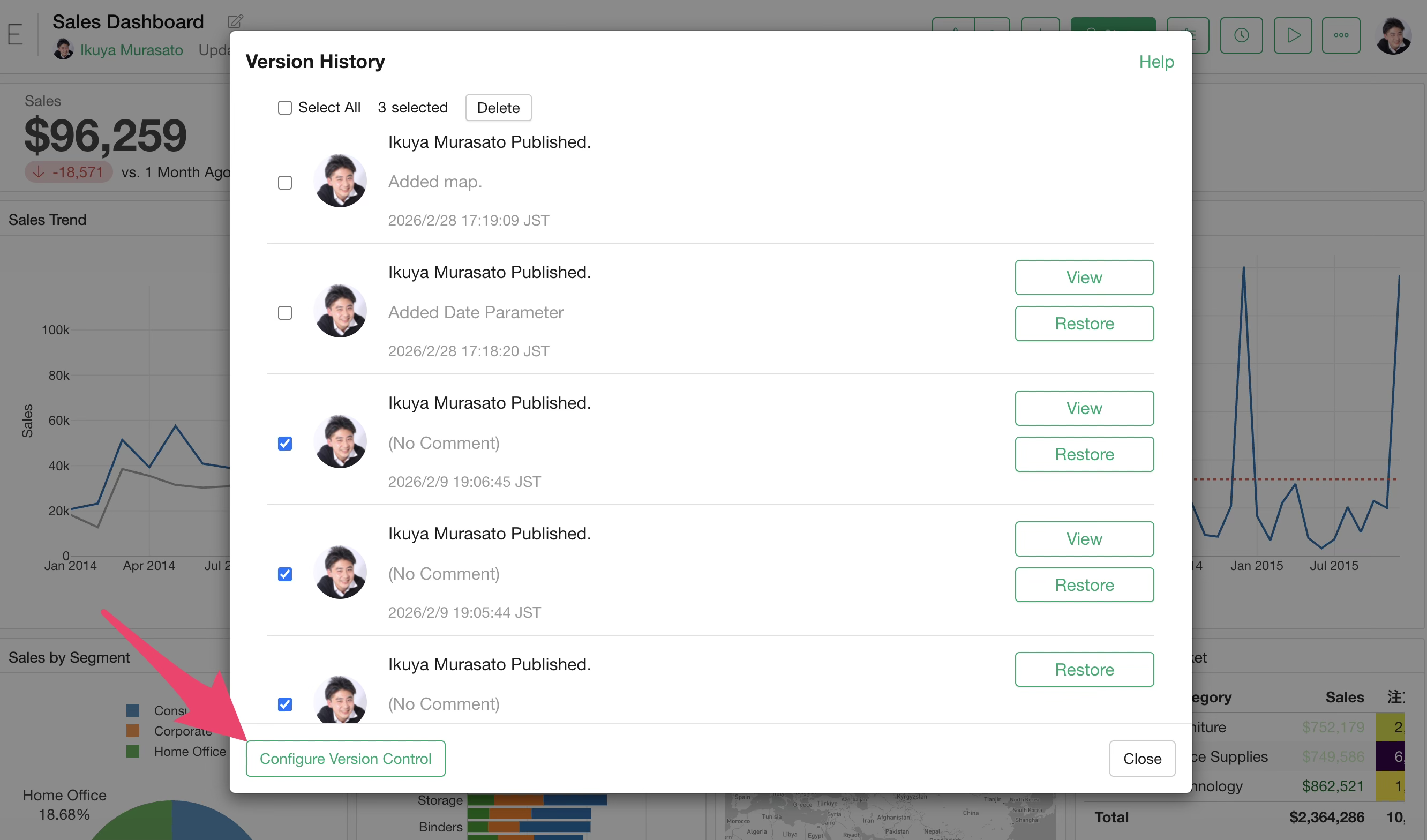
Click the menu icon in the top right of the content page and select “Version History.”
Clicking Version History allows you to see information about past versions.
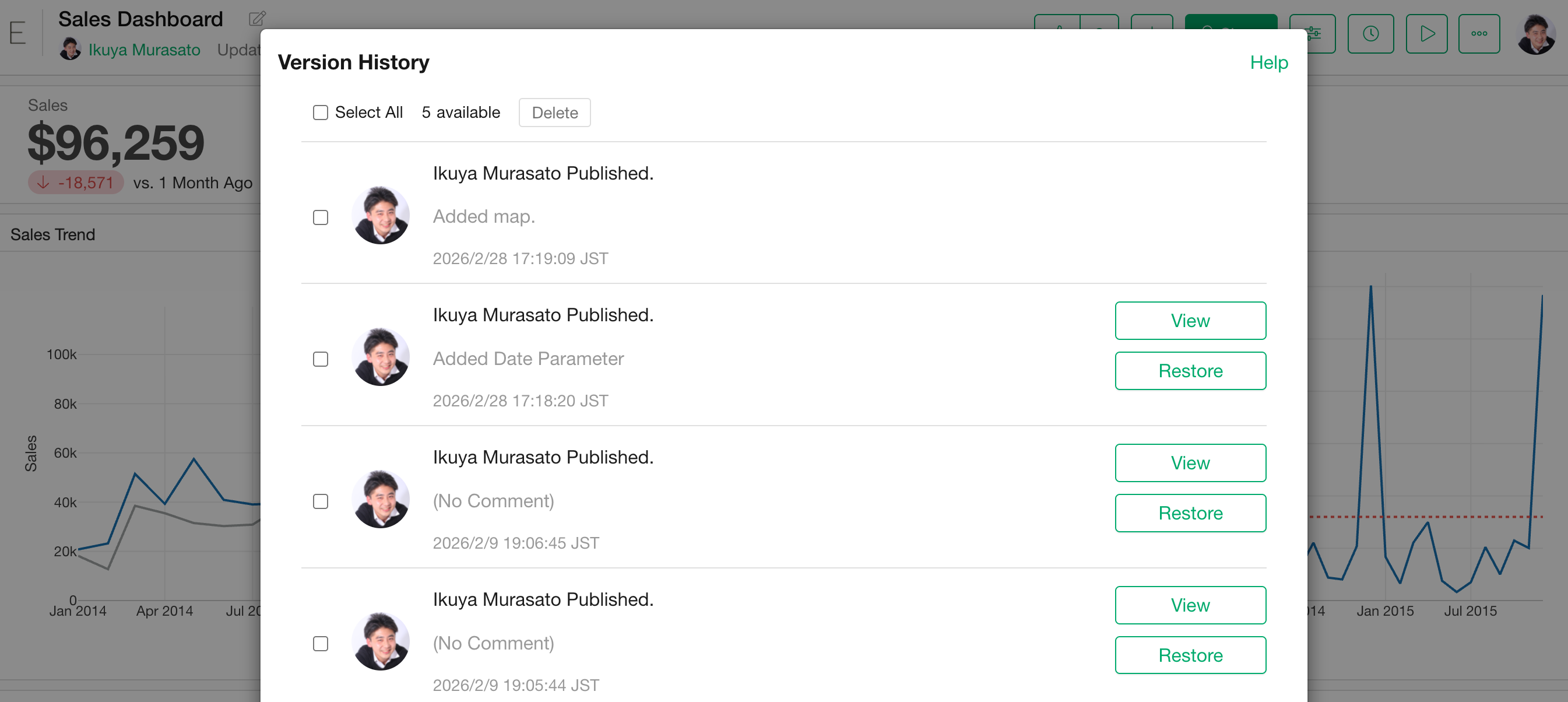
In this case, for example, there are 5 entries, meaning the server is storing content from the last 5 times it was published.
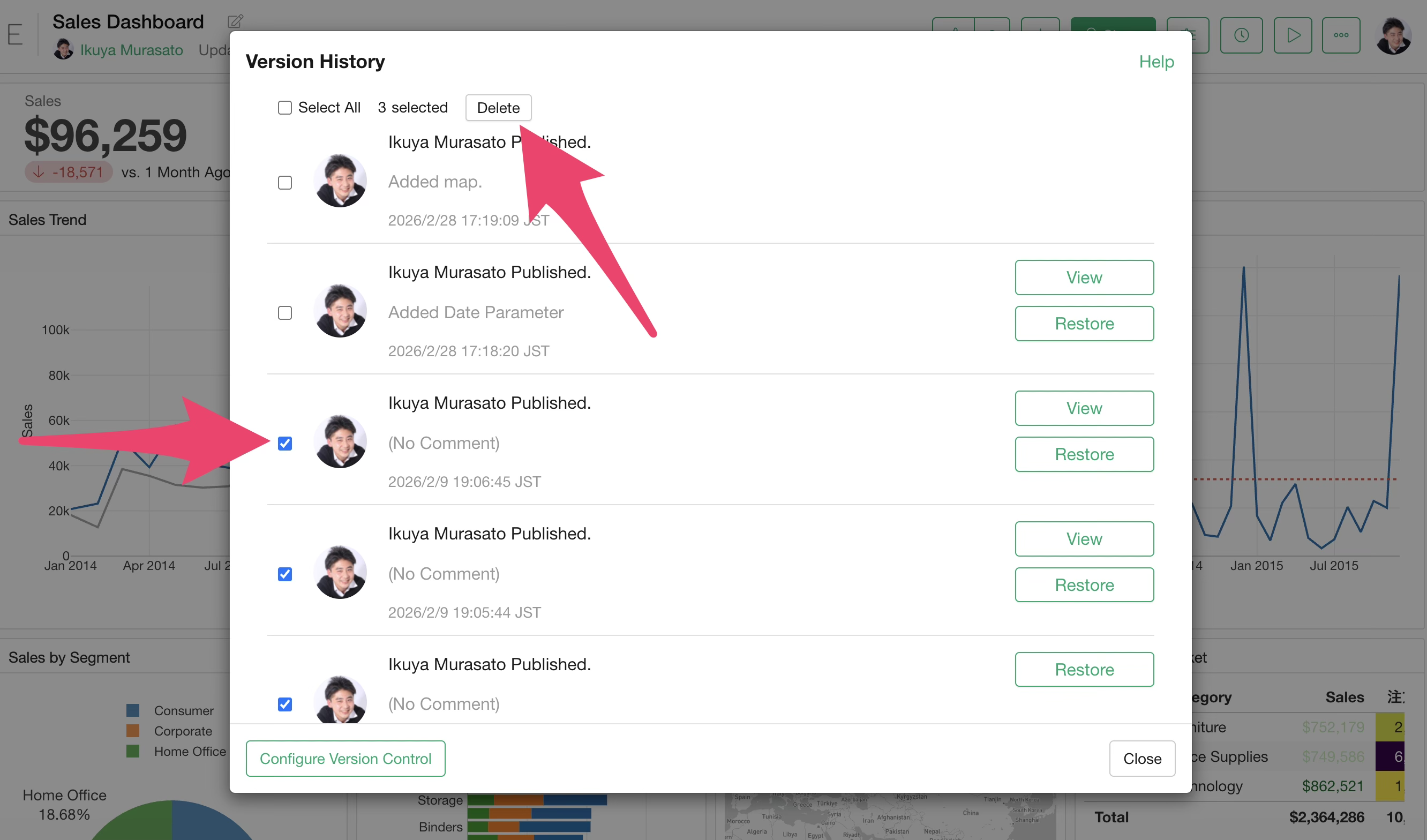
If you do not need to keep past versions, click on the unnecessary version and then click the delete button at the top of the screen to remove the version history and reduce disk usage.
By default, the version history is set to save the last 30 versions. If you do not need to keep 30 versions, click the “Version Settings” button at the bottom left of the version history dialog.
This will take you to the Version Management menu on the account settings page.
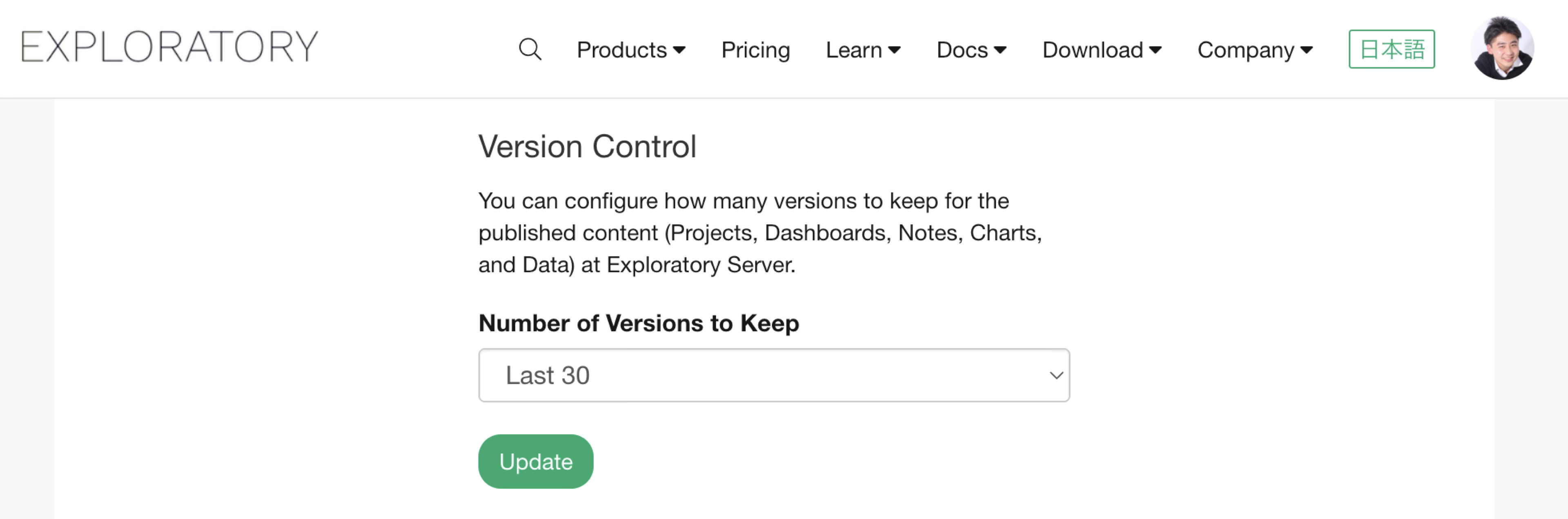
While the default is set to the last 30 versions, you can change the setting to keep only the “Last 10 versions” or “Last 3 versions” from the menu.
Increasing Server Storage
While we have discussed how to optimize storage capacity, another approach is to upgrade the storage capacity itself.
Upgrading Your Plan
The storage capacity available on the server is determined by your plan. Upgrading to a higher plan from the account settings page will increase your storage capacity.
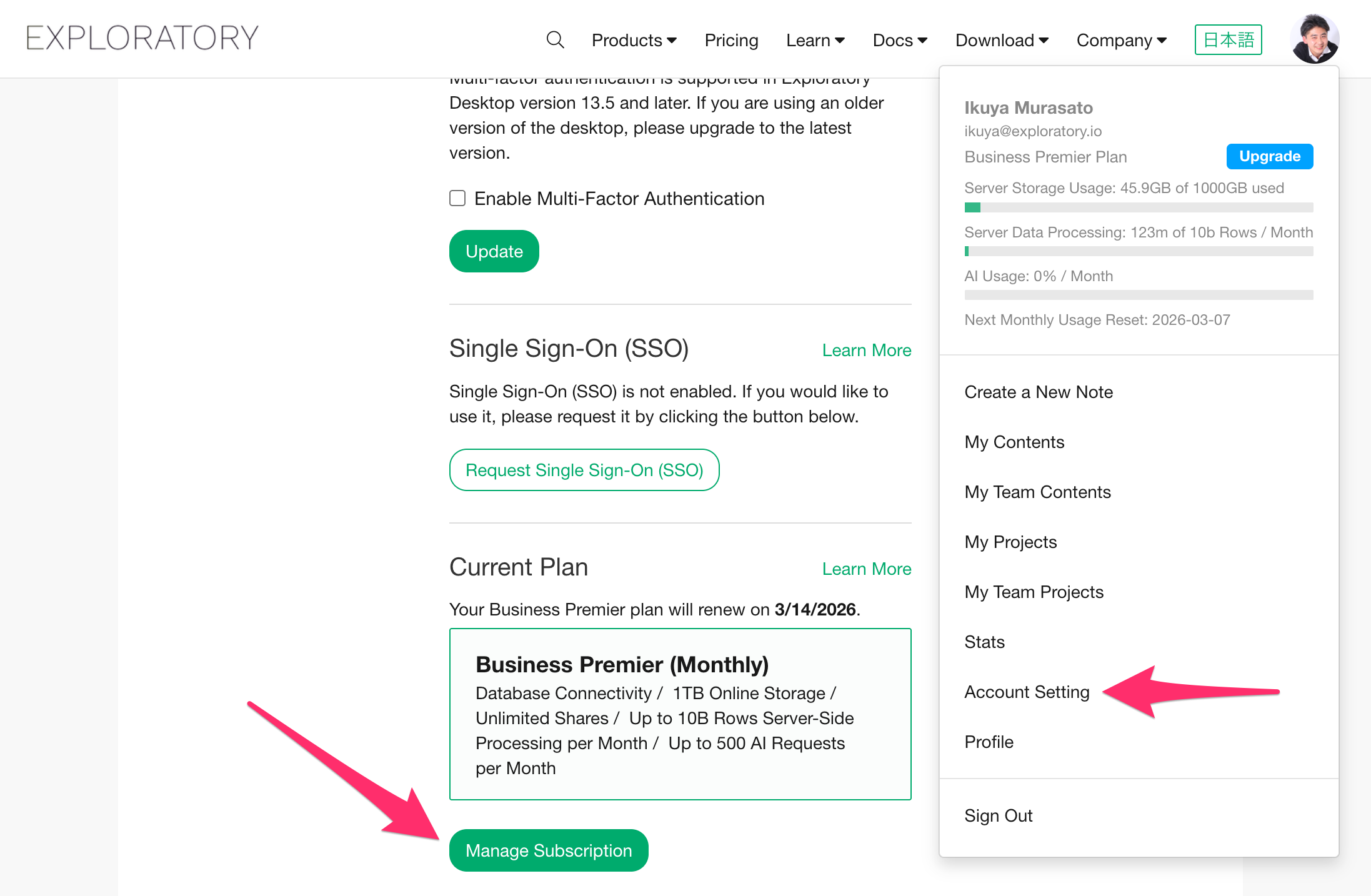
If you are using Exploratory via invoice payment, please contact support@exploratory.io.
Upgrading to Hosted Server / On-Premise Server
Until now, the assumption was the use of the Shared Server hosted by Exploratory. However, by using server products such as On-Premise Server or Hosted Server, you can build an Exploratory Server in your own dedicated environment to publish and share content.
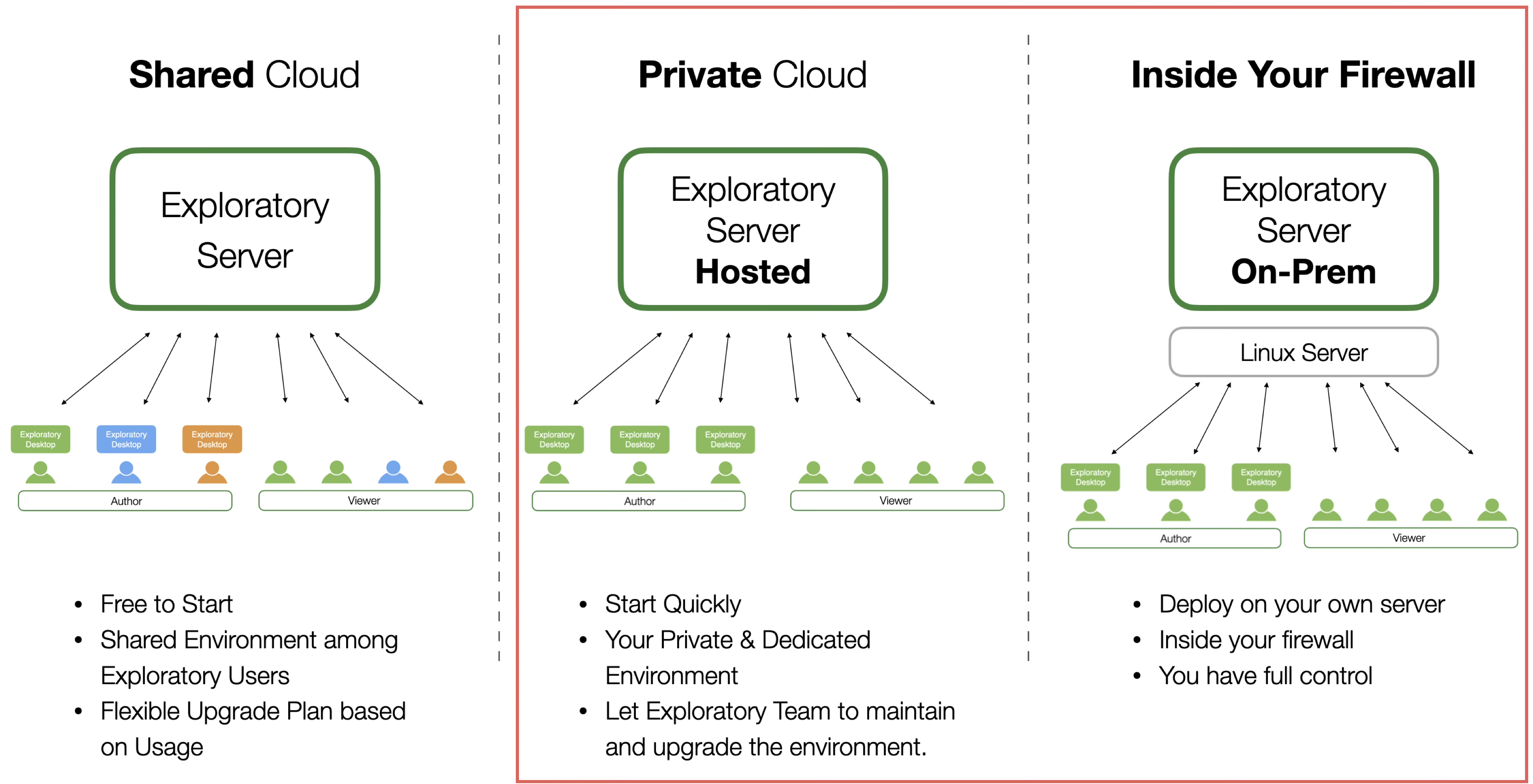
When using server products, the restriction of storage capacity being tied to an individual is removed, and the total disk space of the server becomes the capacity available for publishing.
You can find more details about server products at the following link.