How to Publish Projects, Data / Steps, Charts, Analytics, Notes, and Dashboards to Exploratory Server
In Exploratory, you can publish various types of content, including projects, data, charts, analytics, notes, and dashboards, to the server.
This note introduces how to publish each insight to the server.
Location of the Publish Button
To publish content, click the publish icon on each respective content piece.
Projects
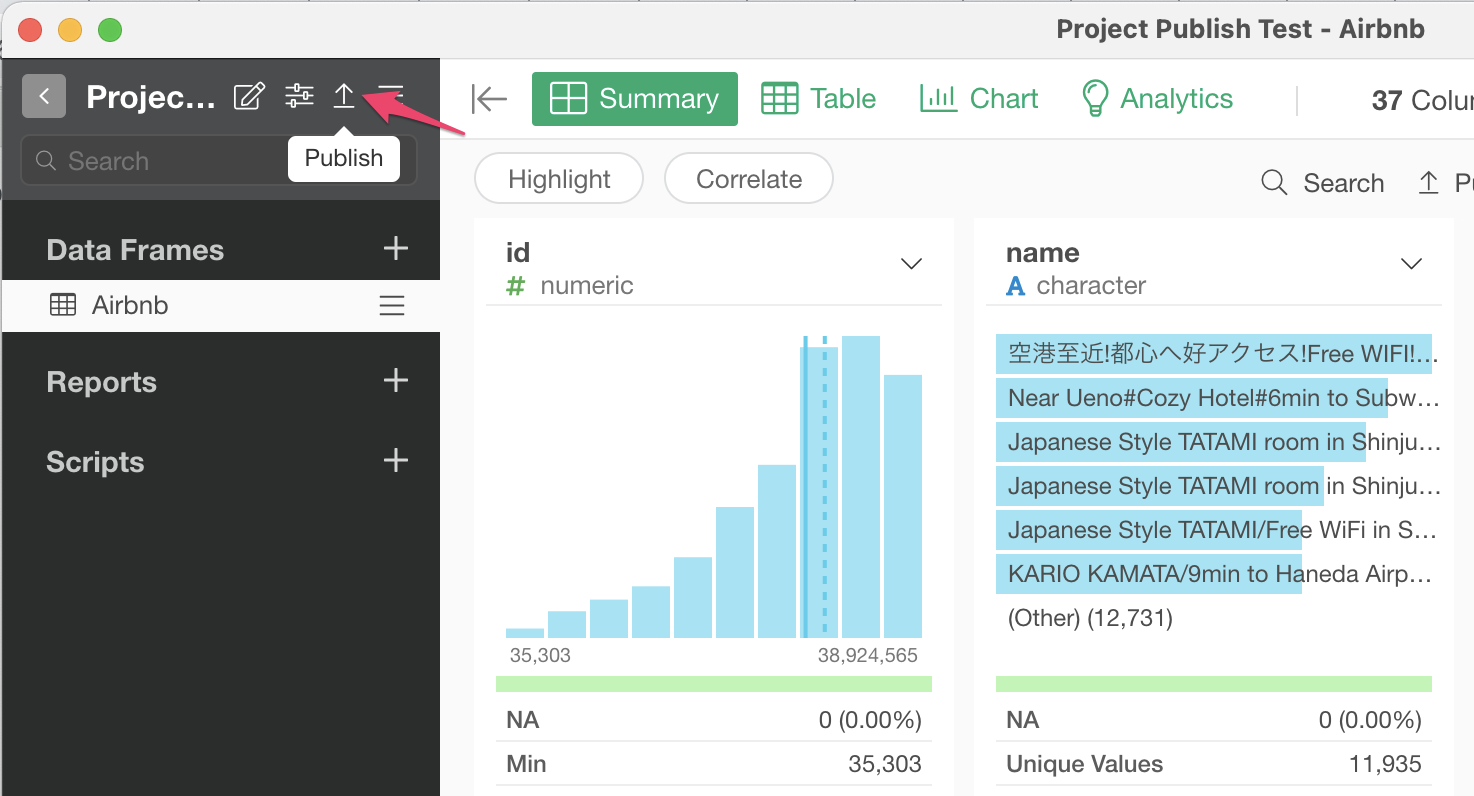
To publish a project, click the up arrow icon in the project header.
Data / Steps
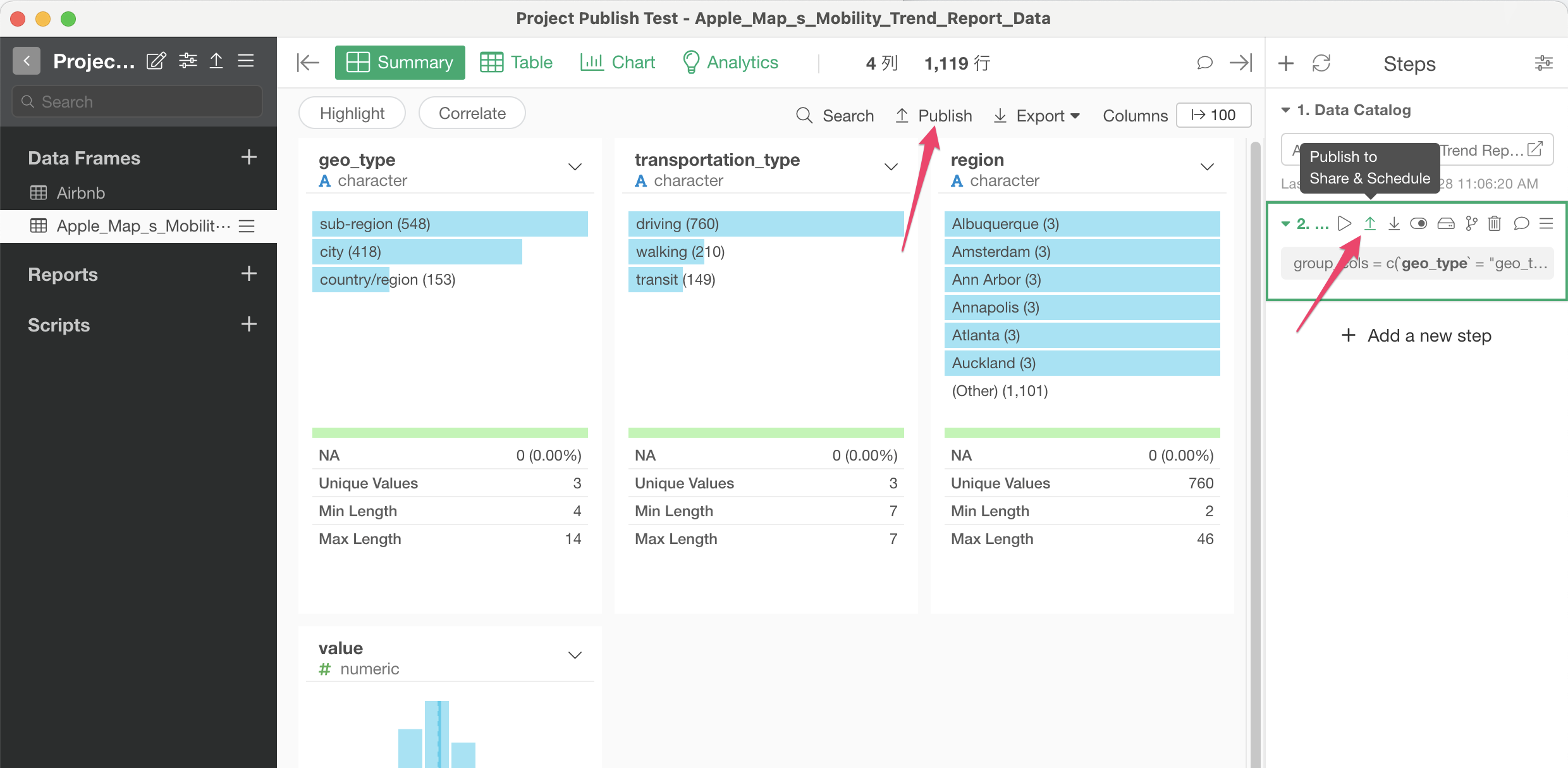
To publish data or steps, click the up arrow icon on the step, summary view, or table view.
Charts
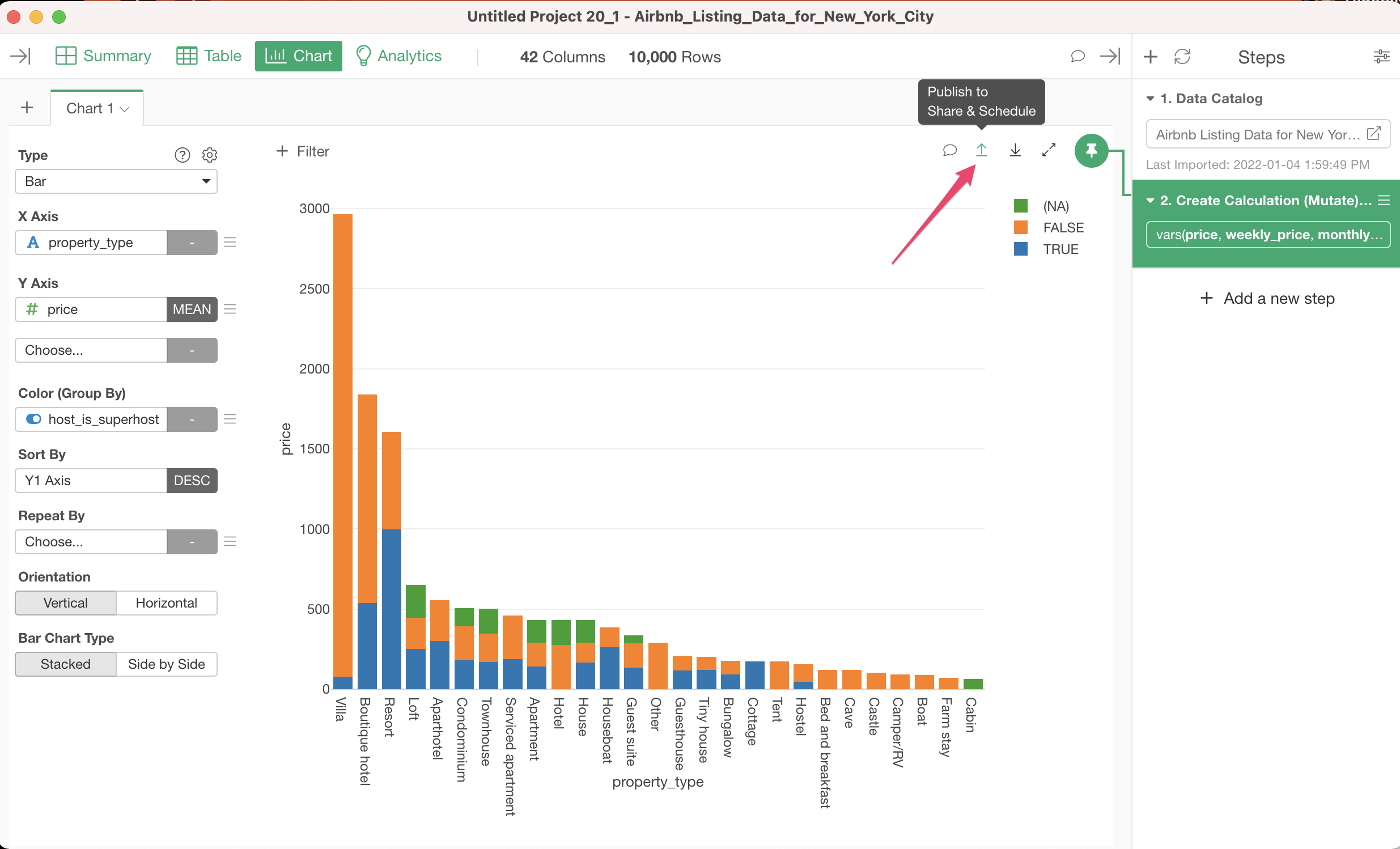
To publish a chart, click the up arrow icon on the chart.
Analytics
To publish analytics, click the up arrow icon on the analytics view.
Notes
To publish a note, click the up arrow icon on the note.
Dashboards
To publish a dashboard, click the up arrow icon on the dashboard.
Publish Dialog
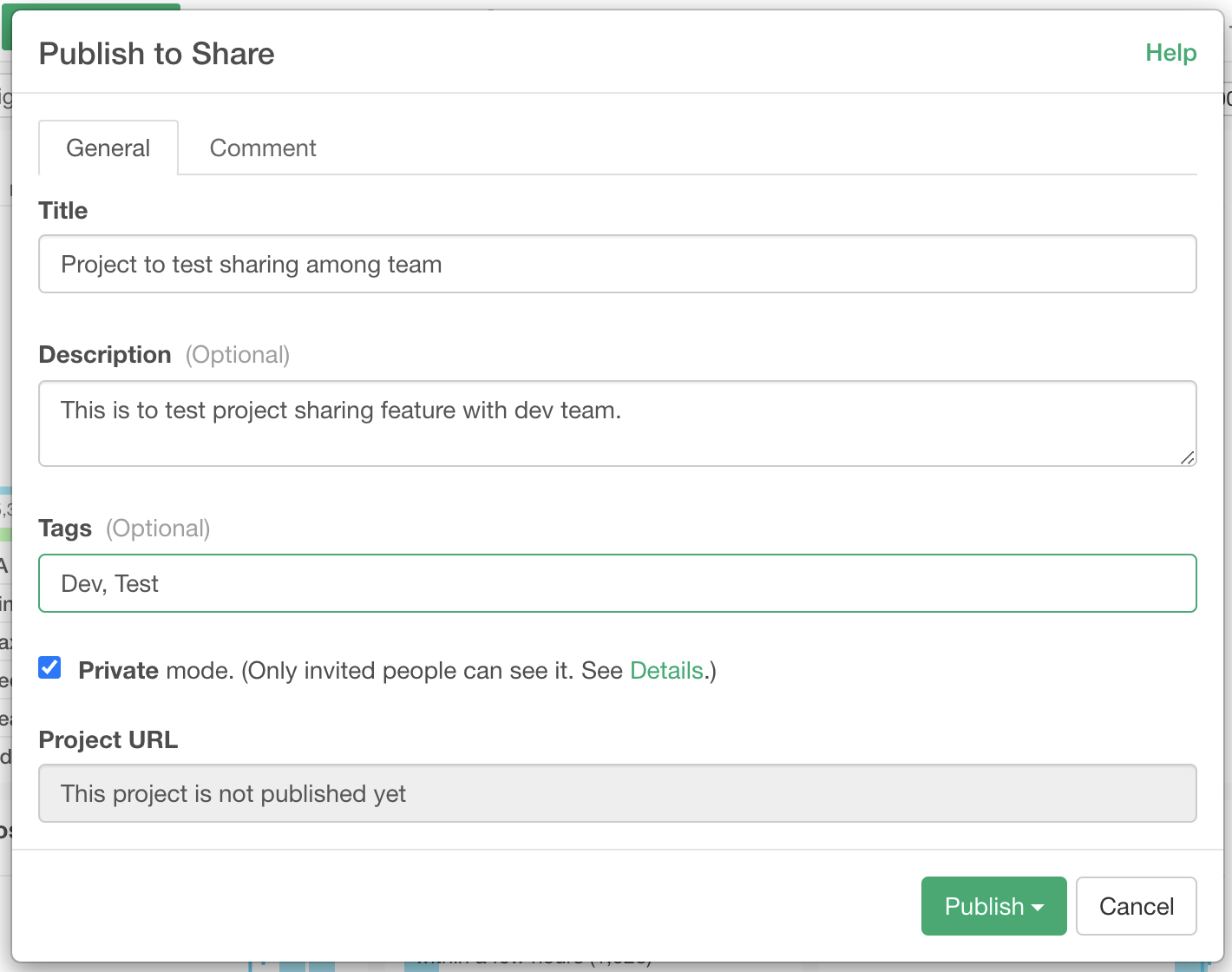
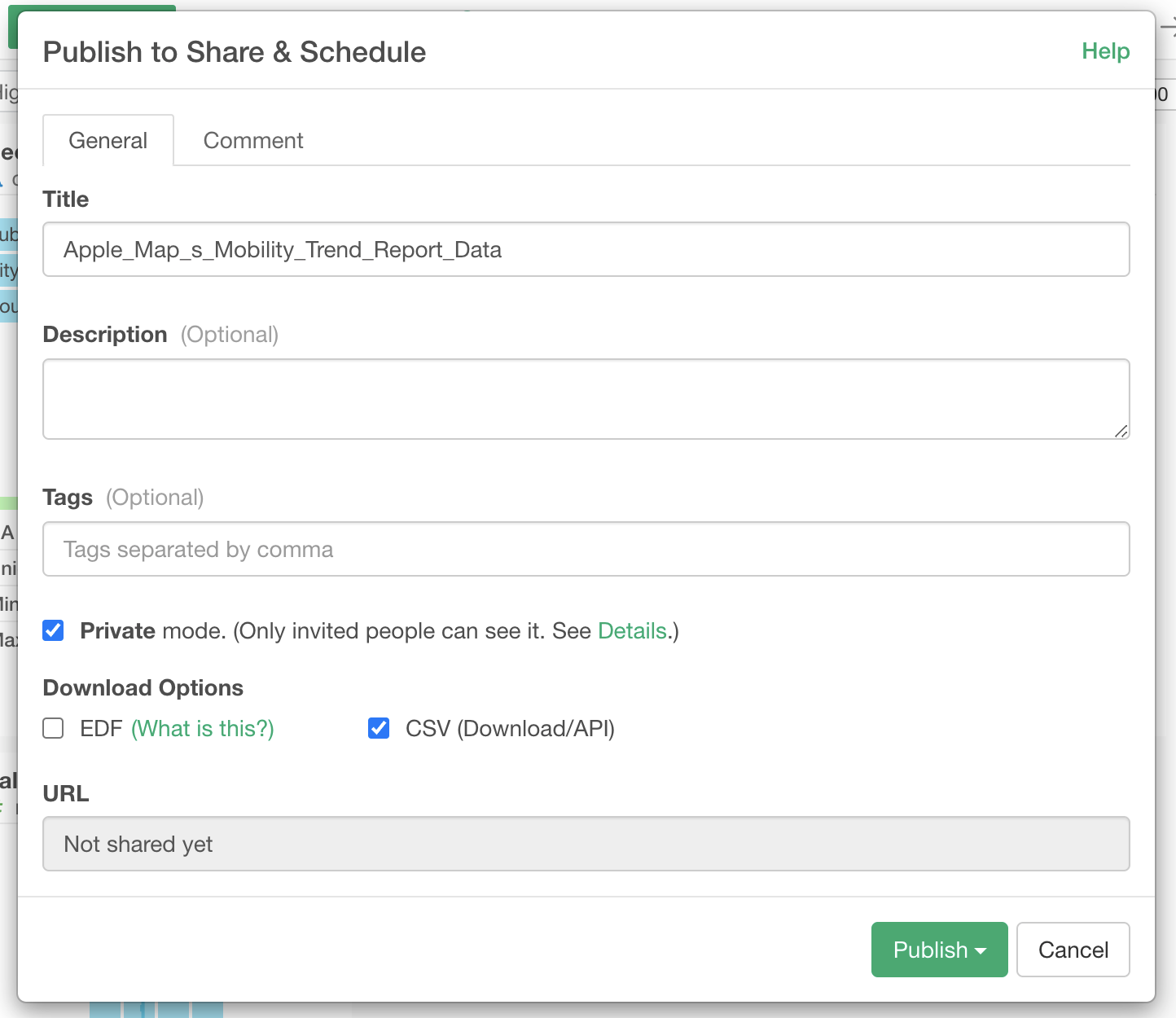
When you click the publish icon for any content, a dialog for publishing will appear.
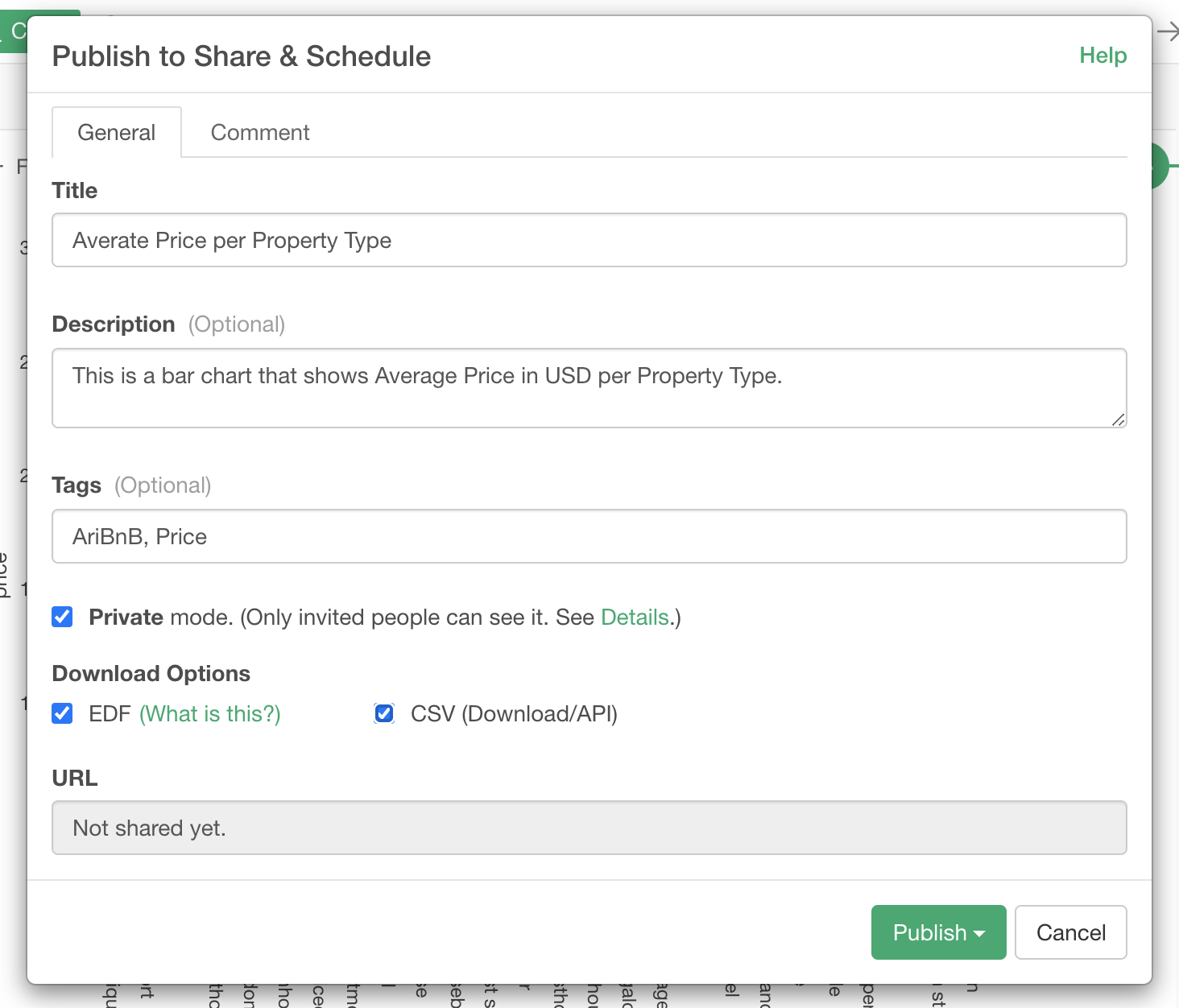
Clicking the publish icon opens a dialog like the one shown below.
Title
Enter the name of the project you wish to publish.
Description
If necessary, you can enter a summary of the project being published. This is an optional field.
URL
When you publish a content, a unique URL is issued.
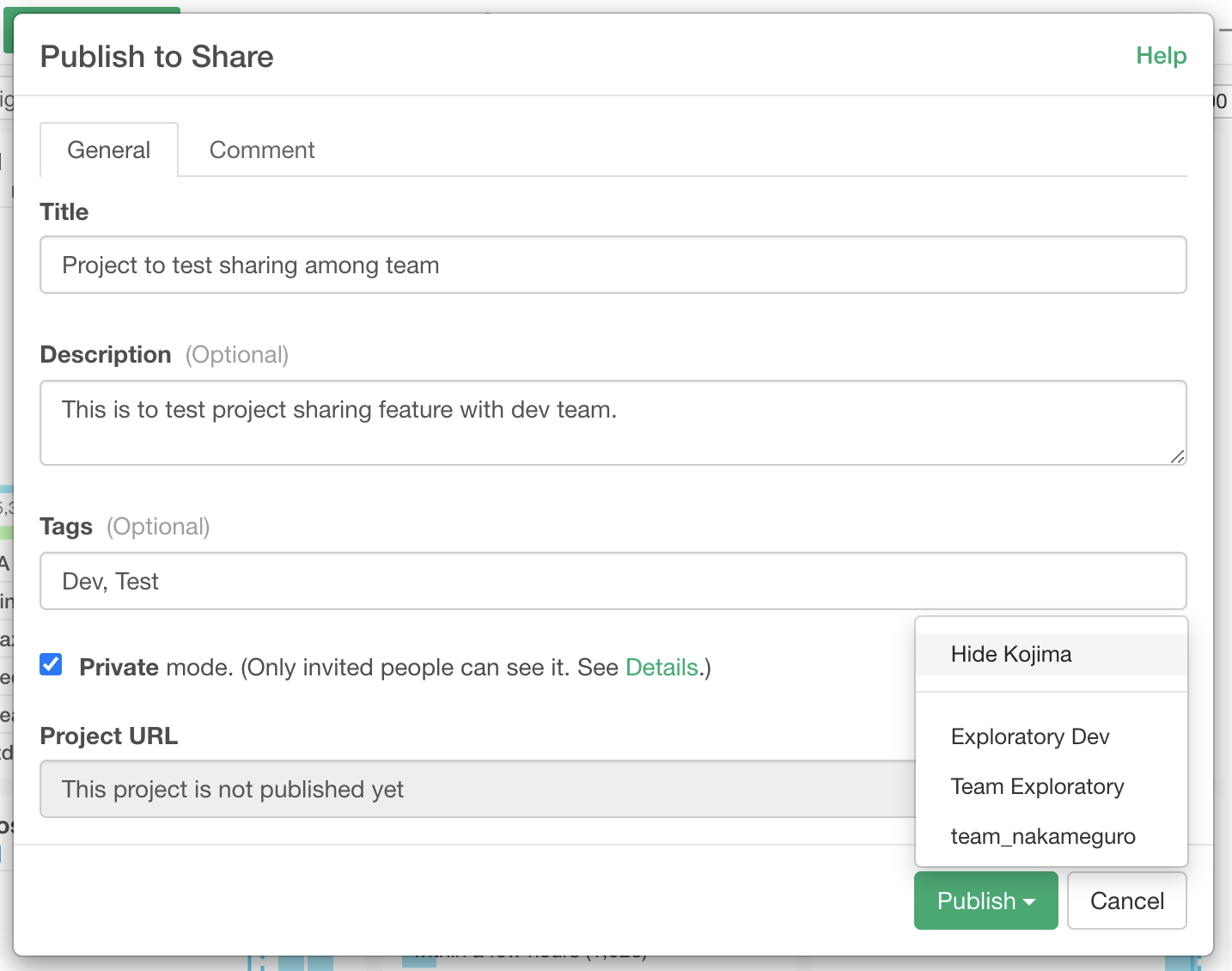
Publish as a Team
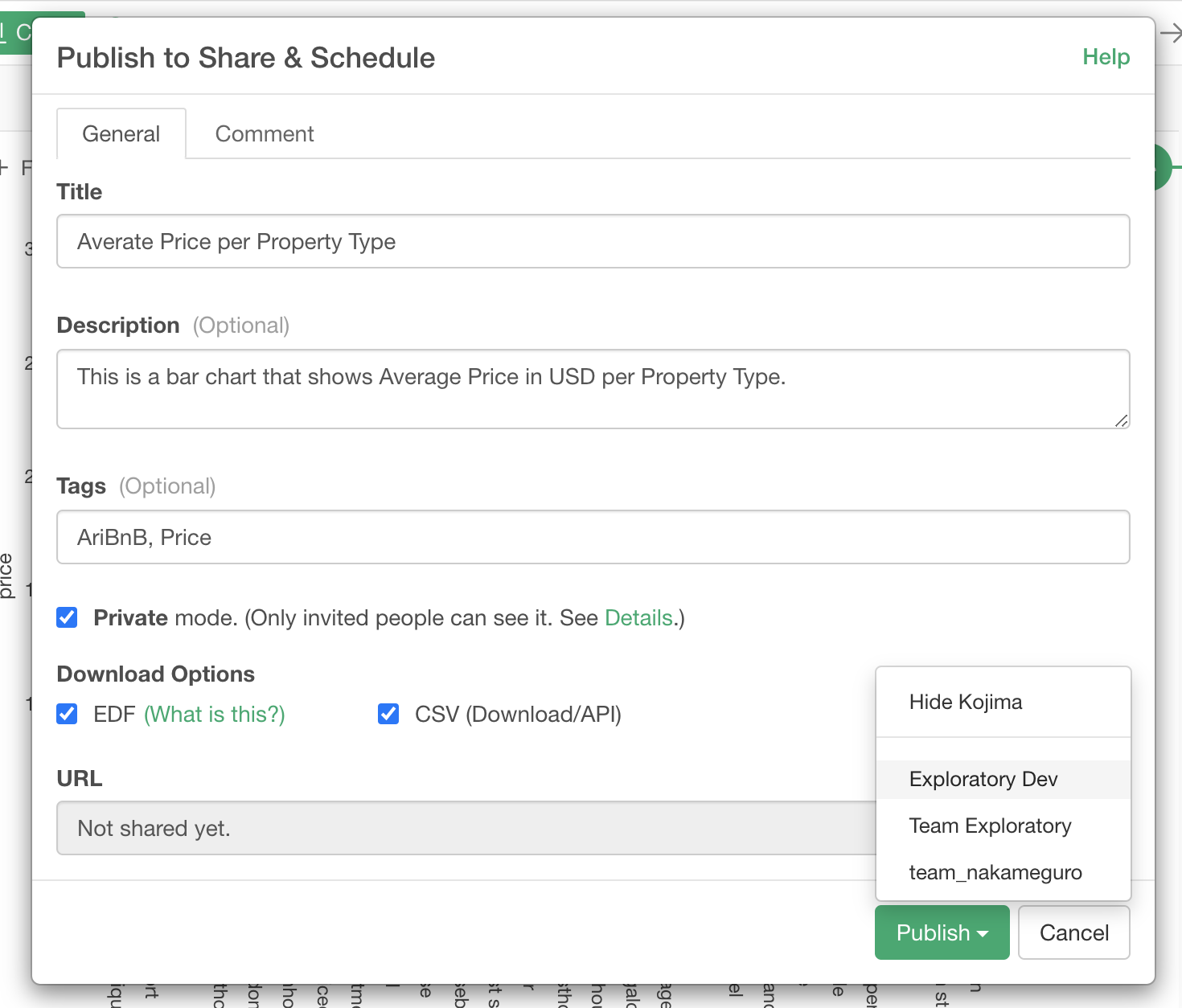
If you belong to a team, clicking the publish button will display a list of the teams you are a member of.
Selecting a team will publish the project as that selected team. If you wish to publish the project as an individual, select your name from the “As Individual” section.
For more details on publishing as a team, please check here.